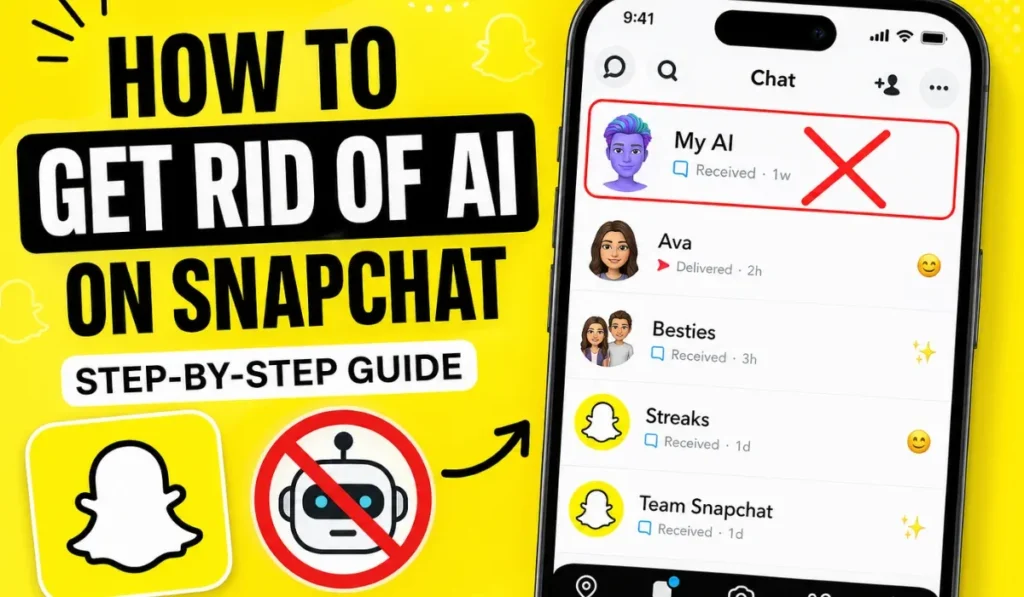
If you want to get rid of AI on Snapchat, the most useful distinction is between removing My AI from your Chat feed and deleting data you previously shared with it. Snapchat currently lets users unpin or clear My AI from the Chat feed, while separate settings are available for managing My AI data.
The exact options can vary as Snapchat rolls features out, but the current official process is straightforward: press and hold My AI, open Chat and Notification Settings, then choose Unpin Conversation or Clear from Chat Feed. Clearing the chat feed does not itself delete data already shared with My AI.
Below is a complete guide to removing My AI from view, managing stored My AI content, reducing notifications, and understanding what you can and cannot disable.
What Is Snapchat AI (My AI)?
My AI is Snapchat’s built-in AI chatbot. It is available from the Chat experience and can answer questions, offer suggestions, help with planning, and provide other conversational assistance.
My AI is different from an ordinary friend conversation. It is an AI feature integrated into Snapchat, and Snapchat provides separate controls for its Chat placement, notifications, and stored data.
- It can answer general questions and provide suggestions.
- It can appear in your Chat feed.
- You can manage whether its conversation is pinned or cleared from the Chat feed.
- You can separately delete content or data shared with My AI.
If your main problem is seeing My AI at the top of your Chats, you do not need to delete your Snapchat account or stop using Snapchat. The Chat feed controls are designed specifically for this situation.
Can You Completely Remove Snapchat AI?
There is an important difference between removing My AI from your Chat feed and completely disabling the AI feature across Snapchat. Snapchat’s current support documentation provides options to unpin or clear My AI from the Chat feed, but it does not describe a universal switch that permanently removes every My AI-related experience from the entire app.
- Remove from Chat feed: Yes, Snapchat provides a Clear from Chat Feed option.
- Unpin from the top: Yes, where the option is available, you can unpin the conversation.
- Delete shared My AI data: Yes, Snapchat provides separate data controls.
- Disable every AI feature everywhere: Not documented as a universal setting.
So the practical goal is to remove My AI from the places where you do not want to see it and manage the data you have shared with it.
Method 1: Unpin My AI (Snapchat+ Users Only)
If My AI is pinned at the top of your Chat feed and your account has the applicable Snapchat+ option, you can unpin the conversation.
Step-by-Step Guide
Steps:
- Open Snapchat.
- Swipe right from the Camera screen to open Chat.
- Press and hold My AI.
- Tap Chat and Notification Settings.
- Tap Unpin Conversation.
After unpinning, My AI should no longer remain pinned at the top of your Chat feed. Snapchat notes that the feature can be rolling out gradually, so the exact option may not appear on every account immediately.
Method 2: Clear My AI from Chat Feed
If you want My AI removed from the visible Chat feed rather than simply unpinned, Snapchat provides a Clear from Chat Feed option.
- Open Snapchat.
- Swipe right from the Camera screen to open Chat.
- Press and hold My AI.
- Tap Chat and Notification Settings.
- Tap Clear from Chat Feed.
- Confirm the action if Snapchat asks you to.
This removes the conversation thread from your Chat feed. It does not automatically delete content you previously shared with My AI. Snapchat provides separate controls for deleting that data.
Method 3: Disable My AI Data & Privacy Features
If your concern is privacy rather than the Chat feed, clearing the conversation is not enough. Snapchat says content shared with My AI can be retained until you delete it, and it provides settings for deleting past My AI data.
- Open Snapchat and tap your Profile icon.
- Tap the Settings gear.
- Find the privacy or data controls available on your version of Snapchat.
- Look for the option to delete or clear My AI Data.
- Confirm the deletion when prompted.
- Chat feed removal: removes the My AI conversation from your visible Chat feed.
- My AI data deletion: handles content previously shared with My AI.
Snapchat’s current instructions differ slightly between iOS and Android, and the setting labels can change. Snapchat says deleting relevant My AI data from its servers can take up to 30 days.
Method 4: Remove AI from Search Suggestions
My AI can also be found through Snapchat’s search experience. If you have cleared it from the Chat feed, you may still be able to search for My AI and open the conversation again.
- Tap Snapchat’s search icon.
- Search for My AI.
- Open or manage the result if you need to access its Chat.
There is not a current official Snapchat instruction showing a universal “Hide My AI from every search result” switch. Therefore, avoid relying on older guides that promise a permanent search removal.
Method 5: Block My AI (Limited Effect)
Blocking is not the correct method for managing My AI. Snapchat’s official controls focus on unpinning, clearing the Chat feed, managing notifications, and deleting My AI data.
- Use Unpin Conversation if you only want it removed from the pinned position.
- Use Clear from Chat Feed if you want the conversation removed from your Chat feed.
- Use My AI data controls if you want to delete previously shared content.
- Use notification controls if notifications are the main problem.
This is more reliable than trying to block My AI as though it were another Snapchat user.
Method 6: Subscribe to Snapchat+ (Full Control Option)
Snapchat+ can provide additional controls around My AI, including the ability to pin or unpin My AI where the feature is available. However, Snapchat+ should not be described as a universal switch that permanently deletes every AI experience from Snapchat.
Benefits:
- Additional Snapchat+ customization and premium features.
- My AI pinning controls where supported.
- Access to other Snapchat+ features that change over time.
Cost:
- Snapchat+ pricing varies by country, device, and subscription plan.
If your only reason for considering Snapchat+ is to remove My AI, check the controls available on your account first. You may be able to clear or manage My AI without subscribing.
Why Snapchat Doesn’t Let You Remove AI
Snapchat does not state in its support documentation that My AI cannot be removed because of a particular business strategy. It is safer to separate what Snapchat officially provides from assumptions about why the company designed the feature this way.
What is clear is that My AI is integrated into Snapchat and has its own management controls. Snapchat continues to develop AI features alongside other parts of the app, so the available controls can change with future updates.
Common Problems & Fixes
1. My AI Keeps Coming Back
Fix: Check whether My AI has been re-added to your Chat feed. Snapchat provides instructions for adding My AI back after it has been cleared, so clearing the feed should not be treated as permanent deletion of the feature.
2. AI Is Always Pinned
Fix: Press and hold My AI and check Chat and Notification Settings. If your account has the applicable option, choose Unpin Conversation.
3. Privacy Concerns
Fix: Delete My AI data through the relevant Snapchat privacy or data settings, and avoid sharing sensitive information with an AI chatbot. Snapchat says shared My AI content can be retained until deleted.
4. AI Sends Messages First
Fix: Check My AI’s notification settings and manage the conversation from Chat and Notification Settings. Snapchat’s support center also provides a dedicated option for muting My AI notifications.
Pro Tips to Avoid Snapchat AI
If your goal is simply to make Snapchat feel less AI-focused, use the controls that actually affect what appears in your account.
- Clear My AI from the Chat feed if you do not want the conversation visible there.
- Unpin it if you only want to remove the pinned position.
- Mute My AI notifications if notifications are distracting.
- Delete My AI data if you want to manage previously shared content.
- Avoid sharing passwords, financial information, private documents, or other sensitive details with My AI.
One important correction to older advice: simply avoiding My AI does not guarantee that it becomes permanently invisible. Snapchat provides specific controls for managing its Chat placement and data, and those are the controls worth using.
Is Snapchat AI Safe?
Like any AI chatbot, My AI should be used carefully. The safest approach is to treat it as a digital service rather than as a private human conversation.
Safe:
✔ General questions
✔ Everyday ideas and suggestions
✔ Non-sensitive conversations
Avoid:
❌ Passwords and authentication codes
❌ Financial information
❌ Highly sensitive personal information
❌ Private documents or information you would not want stored by a digital service
Snapchat says content shared with My AI is retained until you delete it, so users should understand the available data controls before sharing sensitive information.
Alternatives: Use Snapchat Without AI Feel
You can keep using Snapchat normally without making My AI the center of your experience.
- Focus on Stories and Snaps instead of AI conversations.
- Clear My AI from your Chat feed when you do not need it.
- Mute My AI notifications if you find them distracting.
- Use Snapchat’s normal messaging and camera tools for everyday communication.
- Review your privacy and data settings regularly.
Final Thoughts
Getting rid of AI on Snapchat is mainly about choosing the right control for what you want to change. If you want My AI out of your Chat feed, use Clear from Chat Feed. If you only want it removed from the top, use Unpin Conversation. If your concern is stored information, use Snapchat’s separate My AI data controls.
Quick Summary:
- Unpin: removes My AI from the pinned position.
- Clear from Chat Feed: removes the conversation thread from the Chat feed.
- Delete My AI data: manages previously shared My AI content.
- Notifications: can be managed separately when available.
- Snapchat+: provides additional premium controls, but is not a universal “delete all AI” switch.
If the options look different on your phone, update Snapchat first and check the current Snapchat Support instructions because Snapchat can change feature availability and menu names over time.
Related guides: Future of Snapchat Plus: AI, Planets & What’s Next in 2026, Snapchat Plus FAQ, Snapchat Plus Hidden Features, and Snapchat Plus Planets Review.