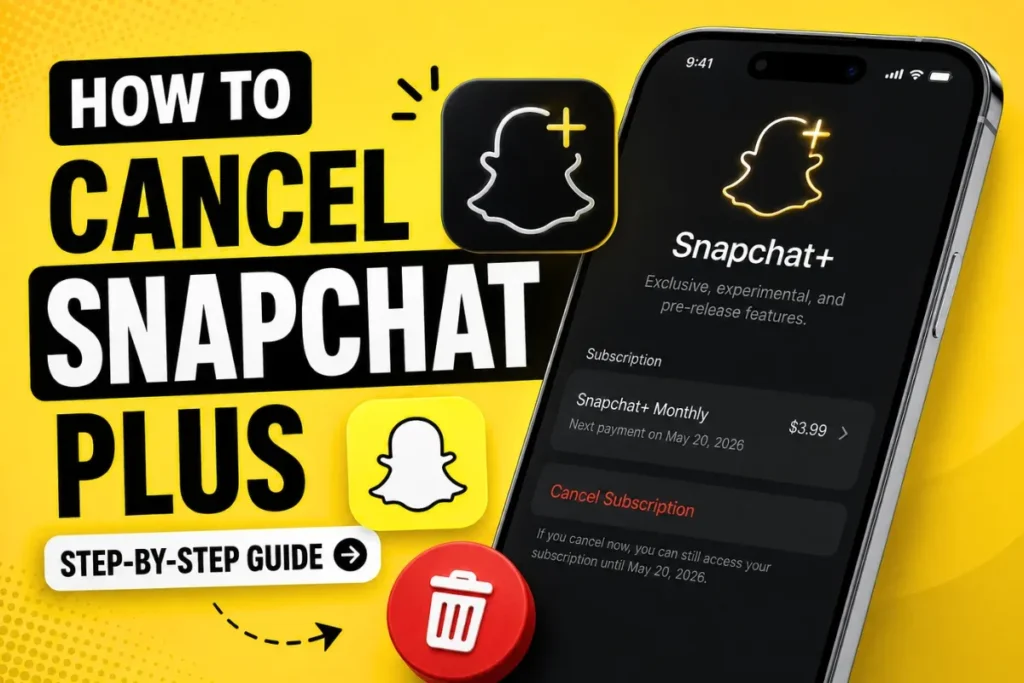
If you want to stop paying for Snapchat Plus, you need to cancel the subscription through the service that bills you. For iPhone, that is usually Apple Subscriptions; for Android, it is usually Google Play.
Canceling the subscription is different from deleting the Snapchat app or deleting your Snapchat account. After a normal cancellation, access generally continues for the time you have already paid for, and the subscription does not renew at the next billing date.
This guide explains how to cancel Snapchat Plus on iPhone and Android, what happens afterward, how free trials work, what to do if the subscription is missing, and how to confirm that renewal has been stopped.
- Cancel Snapchat Plus on iPhone
- Cancel Snapchat Plus on Android
- Cancel a Snapchat Plus free trial
- Understand what happens after cancellation
- Fix common subscription problems
- Check whether Snapchat Plus is actually canceled
What Is Snapchat Plus?
Snapchat Plus, written by Snapchat as Snapchat+, is the paid subscription service that gives subscribers access to premium, experimental, and pre-release features. The available feature list can change as Snapchat adds or retires features.
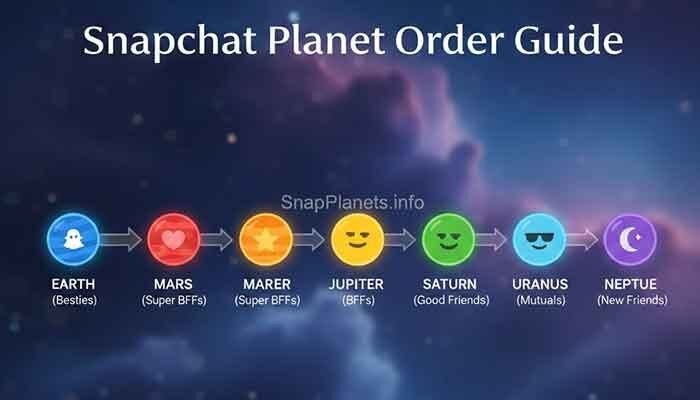
Depending on your plan and region, Snapchat+ can include features such as Friend Solar System, custom app icons, Story Rewatch, Replay Again, priority Story replies, additional customization, and other premium tools.
Because Snapchat regularly updates its subscription offering, the exact features available on your account may differ from older guides or screenshots.
Can You Cancel Snapchat Plus Anytime?
Yes. A recurring Snapchat Plus subscription can generally be canceled before its next renewal. The important point is that you must cancel it through the platform or account that is actually billing you.
For example, if you subscribed through Apple, manage the subscription from Apple Subscriptions. If the subscription is billed through Google Play, manage it from Google Play.
- Apple: Settings → your name → Subscriptions → Snapchat → Cancel Subscription.
- Google Play: Open Google Play subscriptions → select Snapchat → Cancel subscription.
After cancellation, Apple and Google generally allow access through the period already paid for, subject to the subscription type and applicable regional rules.
How to Cancel Snapchat Plus on iPhone
If Snapchat Plus appears under your Apple subscriptions, cancel it from the iPhone Settings app.
Step 1: Open Settings
Open the Settings app on your iPhone.
Step 2: Tap Your Apple ID
Tap your name at the top of Settings to open your Apple Account details.
Step 3: Open Subscriptions
Tap Subscriptions. Apple will show the subscriptions connected to that Apple Account.
Step 4: Find Snapchat
Select Snapchat from the subscription list. If you cannot find it, check whether you are signed in to the Apple Account that was used for the purchase.
Step 5: Tap Cancel Subscription
Tap Cancel Subscription and follow Apple’s confirmation steps. If there is no Cancel button or Apple shows an expiry message, the subscription may already be canceled.
Important Note for iPhone Users
Deleting the Snapchat app does not cancel an Apple subscription. The subscription has to be canceled through the Apple Account that manages the billing.
If Snapchat is missing from your Apple subscription list, check your Apple receipt or email receipt to identify which Apple Account was charged. If Apple did not bill you, another company may be responsible for the subscription.
How to Cancel Snapchat Plus on Android
If Snapchat Plus was purchased through Google Play, manage the subscription from your Google Play subscriptions.
Step 1: Open Google Play Store
Open the Google Play Store on your Android phone and make sure you are using the Google Account that made the purchase.
Step 2: Tap Your Profile Icon
Open your Google Play profile menu and go to the subscriptions area.
Step 3: Select Payments & Subscriptions
Tap Payments & subscriptions, then open Subscriptions.
Step 4: Tap Subscriptions
Review the subscriptions connected to the Google Account and select Snapchat if it appears there.
Step 5: Find Snapchat Plus
Open the Snapchat subscription page. Check the plan details and next renewal information before canceling.
Step 6: Cancel the Subscription
Tap Cancel subscription and follow the on-screen instructions. Google says uninstalling an app does not cancel its subscription.
For a normal recurring subscription, you can generally continue using the service for the time already paid after canceling.
How to Cancel Snapchat Plus Free Trial
If you started a Snapchat Plus trial and do not want it to renew, cancel it through the same platform that manages the subscription.
- iPhone: Settings → your name → Subscriptions → Snapchat.
- Android: Google Play → Subscriptions → Snapchat.
Do not assume that uninstalling Snapchat will stop a trial. Apple recommends canceling a trial at least 24 hours before it ends if you do not want it to renew. Google also advises canceling before the trial expires to avoid the next charge.
The exact trial length is not universal. It can depend on the offer shown to your account, so check the subscription page for your actual renewal or expiration date.
What Happens After You Cancel Snapchat Plus?
Canceling Snapchat Plus normally stops the next renewal; it does not mean that your Snapchat account is immediately deleted.
You Lose Premium Features
When the subscription period ends, features that require Snapchat+ may no longer be available. This can include premium customization and other subscriber-only features associated with your plan.
- Friend Solar System
- Snapchat+ customization features
- Subscriber-only experimental features
- Other premium features available on your plan
The exact feature impact can change because Snapchat updates Snapchat+ over time.
Your Account Is Not Deleted
Canceling Snapchat+ is not the same as deleting your Snapchat account. Your normal Snapchat account remains available unless you separately choose to delete it.
Your friends, chats, Memories, and other account content are not automatically deleted simply because you canceled the subscription.
Your Previous Settings May Reset
Some settings or features that require an active Snapchat+ subscription may no longer be available after the subscription expires. The exact behavior depends on the feature.
- Premium customization can become unavailable.
- Subscriber-only badges or controls can disappear.
- Features that require Snapchat+ can stop working after access ends.
Why People Cancel Snapchat Plus
People cancel subscriptions for different reasons. A user may have subscribed to test a particular feature, may not use the premium tools often, or may simply want fewer recurring charges.
1. They Do Not Use Premium Features
If you mainly use Snapchat for regular Snaps, chats, and Stories, you may not need every Snapchat+ feature available on your account.
2. Subscription Cost
Snapchat+ is a recurring subscription, and its price can vary by country, device, plan, and current offer. Checking the price shown in your Snapchat or app-store subscription page is more reliable than using an old fixed price.
3. Curiosity Subscription
Some subscribers may sign up to test features such as Friend Solar System, customization tools, or other premium features and later decide whether to continue.
4. Too Many App Subscriptions
Recurring app subscriptions can be easy to overlook. Reviewing your Apple or Google subscriptions periodically can help you identify services you no longer want to renew.
Common Problems When Canceling Snapchat Plus
Subscription Not Showing
If Snapchat does not appear in your subscription list, first check that you are signed in to the account that made the purchase.
- Check the Apple Account used for the purchase.
- Switch between Google Accounts if necessary.
- Search your purchase or billing emails.
- Check your bank or card statement to identify the billing company.
Apple specifically recommends checking the receipt to determine which Apple Account or billing company was used when a subscription cannot be found.
Cancel Button Missing
If there is no Cancel button, the subscription may already have been canceled or may be managed somewhere else. Apple says an expiry message can indicate that a subscription is already canceled. On Google Play, check the subscription status and the Google Account currently signed in.
Still Charged After Cancellation
First confirm the cancellation date and the next renewal date shown by the billing platform. Then check the cancellation confirmation or subscription status.
- Check whether the cancellation was completed before renewal.
- Confirm that you canceled the subscription on the account that was billed.
- If the billing issue remains, contact the platform that processed the payment.
Refund eligibility is separate from cancellation. Apple and Google have their own refund processes and policies, so cancellation alone does not guarantee a refund.
How to Check if Snapchat Plus Is Canceled
The easiest way to verify cancellation is to return to the same subscription platform where you originally subscribed.
On iPhone
Go to Settings → your name → Subscriptions → Snapchat. If Apple shows an expiry date or no Cancel Subscription button, the subscription may already be canceled.
On Android
Open Google Play → Subscriptions and select Snapchat. Review the current status and next renewal information. Google also lets you manage subscriptions from its web subscription page.
Can You Reactivate Snapchat Plus Later?
You can generally subscribe to Snapchat+ again after cancellation, provided the plan is available to your account and region.
Reactivating is a new subscription decision. Check the current plan, price, renewal date, and included features before confirming the purchase.
Canceling Snapchat+ does not require you to create a new Snapchat account. Your regular Snapchat account remains separate from the subscription.
Latest Snapchat Plus Updates
Snapchat+ continues to change as Snapchat adds premium, experimental, and pre-release features. Current subscriber features include tools such as Friend Solar System, Story Rewatch, Replay Again, custom app icons, priority Story replies, and other customization options, although availability can vary.
Because Snapchat changes its feature list and subscription plans, avoid relying on old articles that give a fixed list or fixed price for Snapchat+.
For the most accurate information, check the Snapchat+ section inside Snapchat before subscribing or renewing. This is especially important if your account offers a different plan or price from an older guide.
Is Snapchat Plus Worth It?
There is no single answer because the value of a subscription depends on which features you actually use and the price offered to your account.
Before renewing, compare the current Snapchat+ feature list with how often you use those features. Also check whether your subscription is monthly, yearly, or another available plan.
- Review the features you actually use.
- Check the current price shown to your account.
- Check the next renewal date.
- Compare the subscription benefits with your normal Snapchat usage.
Quick Recap
Here is the short version of how to cancel Snapchat Plus:
- iPhone: Settings → your name → Subscriptions → Snapchat → Cancel Subscription.
- Android: Google Play → Subscriptions → Snapchat → Cancel subscription.
- Free trial: cancel before the trial’s renewal deadline if you do not want the paid subscription to start.
- After cancellation: normal access generally continues through the paid period.
- Deleting the app: does not cancel an Apple or Google subscription.
- Account: canceling Snapchat+ does not delete your Snapchat account.
Final Thoughts
Canceling Snapchat Plus is usually quick once you identify who is billing the subscription. iPhone users should check Apple Subscriptions, while Android users should check Google Play.
The most important step is to verify the cancellation status and renewal date after you submit the request. Keep the subscription active if you still want the premium features through the current period, or cancel before the next renewal if you no longer want recurring charges.
If you decide to return to Snapchat+ later, check the current plan and feature list at that time because Snapchat’s subscription options can change.
Related guides: Snapchat Plus FAQ, Snapchat Plus Planets Review, Snapchat Plus Hidden Features, and Snapchat Plus Free Trial Planets.