
If your Snapchat Planets seem stuck, there is an important distinction to understand: Snapchat does not provide a button that resets your Friend Solar System rankings. You can clear the app cache and troubleshoot the feature, but clearing cache does not manually recalculate your Best Friends ranking.
Friend Solar System is a Snapchat+ feature that shows your position among a friend’s Best Friends. Snapchat says Best Friends are the people you Snap and Chat with the most, with up to eight people in the list. The list is updated regularly, so your planet can change as your Snapchat activity changes.
Can You Actually Reset Snapchat Planets?
Not with a dedicated reset command. Snapchat does not document a feature that lets you erase your Friend Solar System ranking and start it from zero. Your planet represents a position in another person’s Best Friends list, so it is not a simple setting stored only on your phone.
If the planet display looks wrong or the Solar System is not loading correctly, troubleshooting the app can help. If the ranking itself is different from what you expect, however, there is no officially documented number of Snaps, Chats, hours, or other actions that guarantees a particular planet.
What Do Snapchat Planets Represent?
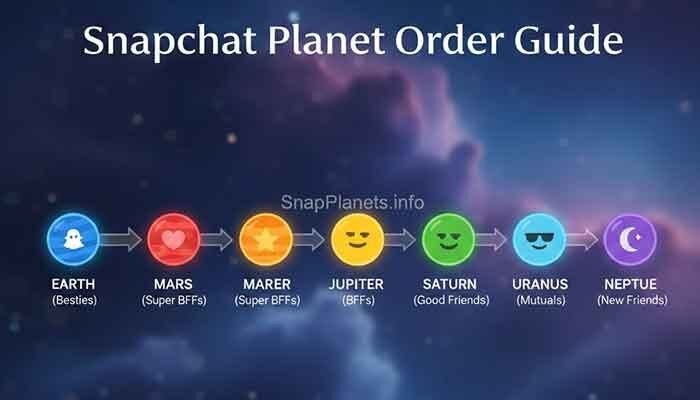
Friend Solar System maps the eight Best Friends positions to eight planets. When you tap the Best Friends badge on a Friendship Profile, Snapchat shows the planet that represents your position in that friend’s list.
- Mercury — #1 position
- Venus — #2 position
- Earth — #3 position
- Mars — #4 position
- Jupiter — #5 position
- Saturn — #6 position
- Uranus — #7 position
- Neptune — #8 position
This means a planet is best understood as a position indicator, not a friendship score. For example, Neptune means the eighth position in the other person’s Best Friends list; it does not automatically describe how important the friendship is outside Snapchat.
Why Might Your Snapchat Planet Look Stuck?
Several different problems can look like a “stuck” planet. The issue may be the app display rather than the ranking itself.
- App or loading issue: Snapchat may need to be restarted or updated if a feature is not displaying correctly.
- Cache data: Temporary app data can sometimes contribute to troubleshooting issues, although clearing it is not a ranking reset.
- Best Friends changes: Snapchat says Best Friends are updated regularly, so positions can move over time.
- Solar System setting: Friend Solar System is a Snapchat+ feature and is off by default for first-time subscribers.
- Feature availability: Snapchat can change or update features, so the options currently shown in your account are the best reference.

Step 1: Clear Snapchat Cache
Clearing the cache is a useful troubleshooting step when Snapchat is behaving unexpectedly. Snapchat specifically says that clearing the cache does not delete your Memories, Snaps, or Chats.
On iPhone
- Open Snapchat and tap your profile icon.
- Tap the Settings gear.
- Scroll to App & Privacy.
- Open My Privacy & Data.
- Under Manage My Data, tap Clear Cache.
- Confirm by tapping Clear.
On Android
- Open Snapchat and go to your profile.
- Tap the Settings gear.
- Scroll to App & Privacy.
- Open My Privacy & Data.
- Under Manage My Data, tap Clear Data.
- Tap Clear Cache and confirm.
Important: clearing cache can help troubleshoot the Snapchat app, but Snapchat does not say that it resets your Friend Solar System ranking. Do not expect the action alone to move you from one planet to another.
Step 2: Restart and Update Snapchat
If the Solar System is missing, loading incorrectly, or showing an unexpected interface, close Snapchat completely and open it again. Snapchat also recommends keeping the app updated when troubleshooting feature problems.
- Close and reopen Snapchat.
- Check the App Store or Google Play for a Snapchat update.
- Make sure your internet connection is working normally.
- Restart your phone if the problem continues.
These steps are designed to troubleshoot the app. They are not a guaranteed method for changing your Best Friends position.
Step 3: Check Your Snapchat+ Solar System Setting
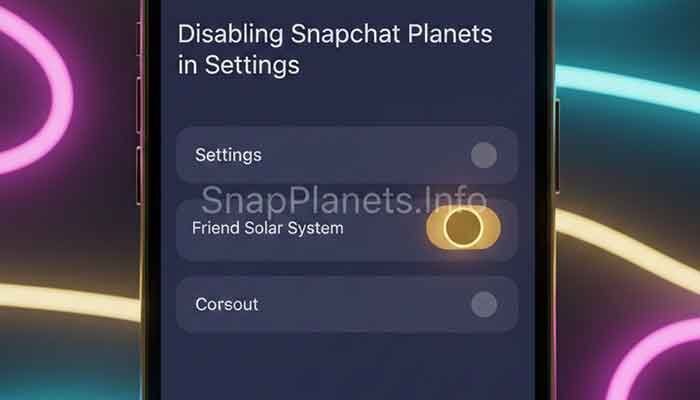
Friend Solar System is included as a Snapchat+ feature. Snapchat says Solar System is off by default for first-time subscribers, and it can be turned on or off from Snapchat+ feature management.
- Open your Snapchat profile.
- Open the Snapchat+ area.
- Find the Solar System feature management option.
- Make sure Solar System is enabled if you want to use the feature.
Turning the feature on or off controls access to the Solar System display. It should not be treated as a tool for deleting or rebuilding your Best Friends ranking.
Step 4: Let Your Best Friends List Change Naturally
If your goal is to change your planet rather than fix a display problem, the relevant factor is your position in the other person’s Best Friends list. Snapchat says Best Friends are the people you Snap and Chat with the most and that the list is updated regularly.
There is no reliable official formula such as “send 20 Snaps,” “Chat for two hours,” or “wait 48 hours” to guarantee Mercury, Venus, or another planet. Avoid guides that present exact interaction targets as if Snapchat officially confirms them.
In other words, you do not need to force a fake reset. If your Snapchat activity changes relative to the other people in that friend’s Best Friends list, your position may change as Snapchat updates the list.

Do These “Reset Tricks” Actually Work?
| Method | What It Actually Does | Resets Planet Ranking? |
|---|---|---|
| Clear Snapchat cache | Removes temporary app data and can help troubleshoot issues | No |
| Restart Snapchat | Reloads the app | No guaranteed reset |
| Update Snapchat | Installs the latest available app version | No |
| Toggle Solar System | Controls access to the Snapchat+ feature | No |
| Pin a #1 Best Friend | Uses Snapchat+ Best Friend pinning | No documented Solar System reset |
| Clear a conversation | Removes a conversation from the Chat feed | No documented reset |
Does Clearing a Conversation Reset Snapchat Planets?
No. Clearing a conversation should not be presented as a way to reset Friend Solar System. Snapchat describes clearing a conversation as removing it from your Chat feed; it does not say that this action erases a person from your Best Friends ranking or restarts the planet calculation.
So there is no good reason to clear a conversation just because you want a different planet. If you need to troubleshoot the app, use the safer cache, restart, update, and connection checks first.
How Long Does It Take for Snapchat Planets to Change?
Snapchat does not publish a fixed public timetable saying that a planet will change after a specific number of hours or interactions. The official guidance says Best Friends are updated regularly, so your position can change over time.
That means a planet that has not changed immediately does not necessarily indicate a broken account. It also means there is no accurate basis for promising that a cache clear or a particular number of Snaps will force an update within 24 or 48 hours.
What If Your Friend Solar System Disappeared?
If you previously saw Friend Solar System and it is no longer available, work through these checks:
- Confirm that your Snapchat+ access is active.
- Check that Solar System is enabled in Snapchat+ feature management.
- Update Snapchat to the latest version available to you.
- Close and reopen the app.
- Check your internet connection.
- Clear the Snapchat cache if the feature still behaves incorrectly.
If the feature still does not work, Snapchat recommends reporting a bug through the app. Feature availability and interfaces can change, so the current options shown in your account are more reliable than older screenshots or unofficial reset tricks.
Can You Reset Your Own Planet Without Affecting Others?
There is no documented setting that lets you reset your planet position for one specific friendship. Remember that the planet you see represents your position in their Best Friends list. Your app cache is not a control panel for that ranking.
Likewise, clearing your cache is a local troubleshooting action. It does not give you a special command to remove yourself from another person’s Best Friends list.
Quick Answer: The Safest Way to “Reset” Snapchat Planets
- First, decide whether you have a display problem or simply dislike your current planet.
- For a display problem, update Snapchat, restart the app, check your connection, and clear the cache.
- If Friend Solar System is missing, check your Snapchat+ access and make sure Solar System is enabled.
- If your planet is simply lower or higher than expected, there is no official reset button or guaranteed interaction formula.
- Let your Best Friends position update naturally as your Snapchat activity changes.
This approach avoids deleting conversations or relying on unsupported “algorithm hacks” that Snapchat has never documented.
Frequently Asked Questions
Is there a reset button for Snapchat Planets?
No. Snapchat does not document a button that resets Friend Solar System rankings to zero. You can troubleshoot the app, but the Best Friends positions are updated by Snapchat.
Does clearing Snapchat cache reset planets?
No. Clearing cache can help troubleshoot temporary app problems and does not delete Memories, Snaps, or Chats, but Snapchat does not describe it as a planet-ranking reset.
Will deleting a Snapchat conversation reset my planet?
No documented Snapchat feature connects clearing a conversation with resetting Friend Solar System. Clearing a conversation removes it from the Chat feed rather than providing a planet reset.
Can I force someone to become Mercury?
There is no guaranteed official method. Mercury represents the #1 position, and Snapchat does not publish a fixed number of Snaps or Chats required to reach that position.
Why did my planet change without me resetting anything?
Best Friends are updated regularly. Because the planet represents a position in that list, your planet can change as your Snapchat activity changes relative to other friends.
Why is Snapchat Solar System not showing?
Check your Snapchat+ access and make sure Solar System is enabled. Snapchat says Solar System is off by default for first-time Snapchat+ subscribers. Updating and restarting the app can also help with feature issues.
Related Snapchat Planets Guides
- Neptune on Snapchat: What the 8th Friend Planet Means
- Snapchat Plus Free Trial: Do You Get Friend Solar System Planets?
- Snapchat Planets on Android vs iPhone: What’s Actually Different?
Final Takeaway
If you searched for how to reset Snapchat Planets because your ranking looks wrong, the key answer is simple: there is no official planet-reset button. Clearing Snapchat’s cache is useful for troubleshooting the app, but it does not erase your Best Friends ranking.
For a missing or broken Solar System, check Snapchat+, enable Solar System if necessary, update the app, restart it, and clear the cache. For a planet that simply does not match what you expected, there is no officially confirmed shortcut. Your position can change as Snapchat regularly updates the Best Friends list.


Pingback: Snapchat Top 8 Friends: How Best Friends Lists Really Work in 2026 | Best Friends List Explained
Pingback: Who Can See Your Snapchat Planets? How Friend Solar System Visibility Works | Snapchat Planets Visibility Guide
Pingback: How to Turn Off Snapchat Planets in 2026: Easy Step-by-Step Guide | Easy Snapchat Planets Guide
Pingback: Snapchat Solar System Sun: What the Center Really Means | Sun and Friend Solar System Explained
Pingback: Snapchat Planets Not Showing? 6 Easy Fixes for 2026
Pingback: Jupiter on Snapchat: What the 5th Friend Solar System Planet Means