
Short answer: Snapchat+ subscribers can choose a different Snapchat app icon for their phone’s home screen. Snapchat’s official steps are simple: open your Profile, tap the Snapchat+ membership card, choose App Icon, and select an available design. You may need to restart your device before the new icon appears.
This guide explains how Snapchat Plus custom icons work, what the setting does, how to choose an icon that fits your home-screen style, what to do when the icon does not update, and how the feature differs from other Snapchat+ customization options.
My Personal Experience with Snapchat Plus Custom Icons
Rather than relying on a personal story or a claimed private test, it is more useful to look at what Snapchat officially provides. The Custom App Icon feature is designed for the Snapchat app icon on your own phone’s home screen. It does not change how your friends see your profile.
The practical benefit is simple: you can make the Snapchat shortcut fit the rest of your home-screen design. If your wallpaper, widgets, and other app icons follow a particular color or style, a different Snapchat icon can make the layout feel more consistent.
Available choices can change as Snapchat updates its Snapchat+ features, so it is better to describe the gallery as the set of icons currently offered in your account rather than promise a fixed list of designs.
For more Snapchat+ information, see our Snapchat Plus FAQ, which covers current features, plans, and common questions.
What Exactly are Snapchat Plus Custom Icons?
Snapchat Plus Custom App Icon is a Snapchat+ feature that lets eligible subscribers choose a different appearance for the Snapchat app icon on their phone’s home screen. Snapchat lists Custom App Icon among its Snapchat+ features, alongside options such as Custom App Themes, Chat Wallpapers, and other personalization tools.
The important point is that this is a home-screen customization. It is not the same as changing your Bitmoji, Friendship Profile, Friend Solar System, or the way your account appears to another Snapchat user.
Why Bother Changing It?
- Home-screen consistency: Choose an icon that works with your wallpaper and widgets.
- Personal style: Use an available design that better matches your preferred look.
- Easy recognition: Pick a design that remains easy for you to spot when you use Snapchat frequently.
How to Change Your App Icon: A Quick Tutorial
Snapchat’s current support instructions make the process straightforward. You do not need to edit the app manually or replace the icon with a third-party shortcut.
- Open Snapchat and go to your Profile.
- Tap your Snapchat+ membership card at the top.
- Tap App Icon.
- Browse the available app icons shown for your account.
- Choose the icon you want to use.
Snapchat notes that you may need to restart your device before the updated app icon appears. If the icon does not change immediately, restarting is one of the first steps worth trying.
Important: The exact gallery can change over time. If a design mentioned in an older guide is not visible in your App Icon section, use the choices currently displayed in your Snapchat account instead of assuming the feature is broken.
The Aesthetic Gallery: Breaking Down the Styles
The most useful way to choose a custom icon is by matching it to the visual style you already use. Snapchat does not require you to follow a particular aesthetic, so the best choice is simply the one that works for your screen and remains easy to recognize.
1. The Planet Series (The Fan Favorite)
Planet-inspired artwork can work especially well if you already like Snapchat’s space-themed visuals. Keep in mind that a custom app icon and the Friend Solar System are separate features. Choosing a space-themed icon does not determine your friend ranking or planet position.
- Earth-style colors: A natural fit for blue, green, or neutral wallpapers.
- Mars-style colors: Useful when your home screen has darker or warmer tones.
- Other space-inspired designs: A good choice when you want the Snapchat shortcut to match a cosmic theme.
2. The Chrome and Metallic Collection
Metallic-looking designs can fit minimalist, monochrome, or futuristic home screens. Instead of choosing an icon because another user calls it the “best,” compare it with your wallpaper, widget colors, and the other icons around it.
- Silver or neutral looks: Easy to coordinate with many home-screen styles.
- Warm metallic looks: Can work well with beige, pink, brown, or gold-toned layouts.
3. Patterned and Artistic Icons
If your home screen is more colorful, patterned or artistic choices may fit better than a plain icon. The available designs can vary, so treat the gallery inside Snapchat as the current source of truth.
- Bold patterns: Useful when the rest of your home screen has graphic elements.
- Seasonal or themed artwork: A simple way to refresh the look when a relevant design is available.
- Color-focused designs: Helpful when you want the icon to match one dominant shade.
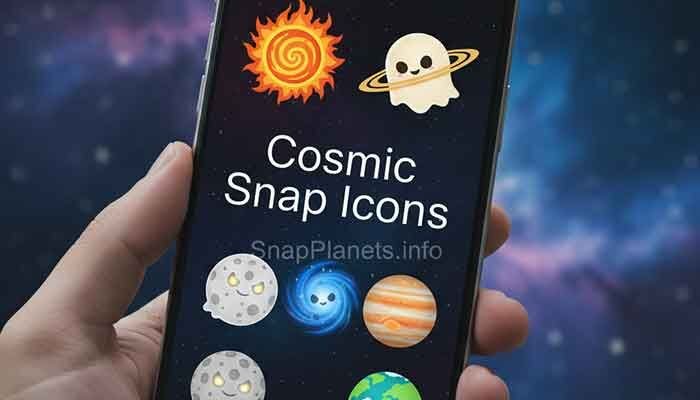
Comparing the Best Snapchat Plus Icon Styles
There is no official Snapchat ranking that declares one custom icon the best. A better comparison is based on how well an icon fits your screen, how quickly you can recognize it, and whether the design you want is currently available in your account.
| Style | Works Well With | What to Consider |
|---|---|---|
| Planet-inspired | Space, dark, blue, or cosmic layouts | Do not confuse the icon with Friend Solar System planets |
| Metallic | Minimalist and neutral screens | Check whether the finish stands out against your wallpaper |
| Patterned | Colorful or playful layouts | Busy patterns can be harder to spot quickly |
| Simple design | Clean and low-clutter screens | Choose an available option that remains easy to recognize |
Why An “Aesthetic Snapchat” Matters in 2026
An app icon is a small part of your phone, but it is also one of the first things you see when you open your home screen. Matching the icon with your wallpaper and widgets can make the layout feel more organized.
Snapchat+ also offers other customization features. Depending on availability, subscribers may have options such as Custom App Themes, Chat Wallpapers, Custom Chat Colors, and other appearance-related tools. Snapchat says some newer customization features are being rolled out gradually, so availability can differ between accounts.
The “Hidden” Psychology of Icon Colors
- High-contrast colors: Can make an icon easier to locate on a busy wallpaper.
- Neutral colors: Often fit minimalist layouts without becoming the main visual focus.
- Dark or muted colors: Can blend nicely with darker themes, but make sure the icon remains easy for you to recognize.
These are design preferences, not Snapchat rules or guaranteed psychological effects. Choose based on what makes your own home screen comfortable and easy to use.
Troubleshooting: Why Won’t My Icon Change?
If you select a new icon and the home screen still shows the old one, start with the simplest checks rather than changing unrelated Snapchat settings.
- Check Snapchat+ access: Make sure you are signed into the Snapchat account that has the Snapchat+ subscription.
- Restart the device: Snapchat specifically notes that a restart may be needed before the updated icon appears.
- Check the App Icon menu again: Return to your Profile, open the Snapchat+ membership card, and confirm the selected option.
- Update Snapchat: If the feature behaves unexpectedly, make sure you are using the current version of the app.
- Try again later: If a feature is rolling out or temporarily unavailable, the option may not appear exactly as it does in another account.

For broader Snapchat+ troubleshooting and feature questions, you can also check our Snapchat Plus hidden features guide and Snapchat Plus free trial guide.
Frequently Asked Questions (The Reddit Deep Dive)
1. Does the custom icon change for my friends too?
No. The Custom App Icon changes the Snapchat icon on your phone’s home screen. It is not a profile appearance setting that changes the icon your friends see when interacting with your account.
2. Can I upload my own photo as a Snapchat icon?
Snapchat’s documented App Icon instructions tell subscribers to choose from the available app icons in the Snapchat+ App Icon section. They do not describe an option for uploading a personal photo as the app icon.
3. Will I lose my custom icon if I cancel Snapchat Plus?
Custom App Icon is a Snapchat+ feature, so access to Snapchat+ features depends on your active subscription access. Snapchat’s support documentation explains how cancellation works and notes that access rules can depend on where and how the subscription was purchased.
4. Are there any “hidden” icons?
Do not assume that an icon is hidden simply because another guide shows it. Snapchat can change or roll out features over time. The safest approach is to open the App Icon section of your Snapchat+ membership card and use the designs currently offered there.
5. Do these icons work on both Android and iOS?
Snapchat’s support documentation describes Custom App Icon as a Snapchat+ feature, but the exact interface and device behavior can vary. Follow the App Icon option shown in your Snapchat+ membership area and restart your device if the new icon does not appear.
Advanced Customization: Going Beyond the Icon
If you want a more complete Snapchat aesthetic, the app icon is only one part of the setup. Snapchat+ also includes other personalization features, including Custom App Themes and Chat Wallpapers, although availability can vary as features roll out.
- Deep-space look: Pair a darker icon with a dark wallpaper and other matching phone widgets.
- Clean minimalist look: Choose a simple icon and keep the rest of the home screen visually uncluttered.
- Color-coordinated look: Pick an icon that complements the main color in your wallpaper.
Snapchat’s newer customization tools can also change parts of the app itself. Its current support documentation says Custom App Themes can include options for the app appearance, Capture Button, tab, and badge colors, with availability rolling out gradually.
Martin’s Final Tip
The simplest approach is to choose an icon that looks good and remains easy to recognize. A highly unusual design may match your wallpaper perfectly but still make the app harder for you to spot. There is no need to follow a trend when another available option fits your screen better.
Also remember that the custom icon is separate from Snapchat Planets. If you want to understand Friend Solar System positions, our Snapchat Top 8 Friends guide explains how Best Friends and the top-eight positions work.
If your goal is to understand Snapchat+ as a whole, our Snapchat Plus FAQ covers features, plans, planets, and common subscription questions.