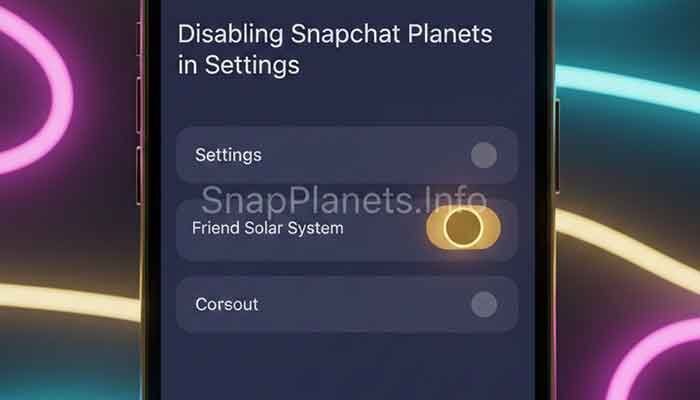
Want to stop seeing Snapchat Planets? You can turn off the Friend Solar System from the Snapchat+ feature management page. Snapchat says the Solar System is off by default for first-time Snapchat+ subscribers and can be switched on or off at any time.
The setting only controls the Friend Solar System feature. It does not cancel Snapchat+, remove your Best Friends, or change your regular Snapchat friendship status. Here is how the setting works and what to expect after you disable it.
What Are Snapchat Planets?
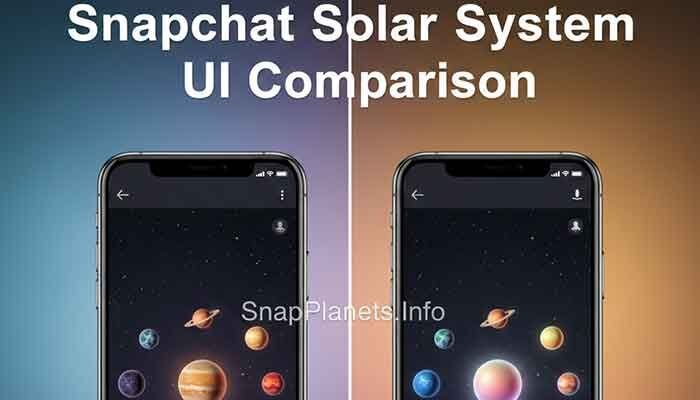
Snapchat Planets are part of Friend Solar System, a Snapchat+ feature that shows your position among a friend’s Best Friends. Snapchat says Best Friends are the eight people you Snap and Chat with the most.
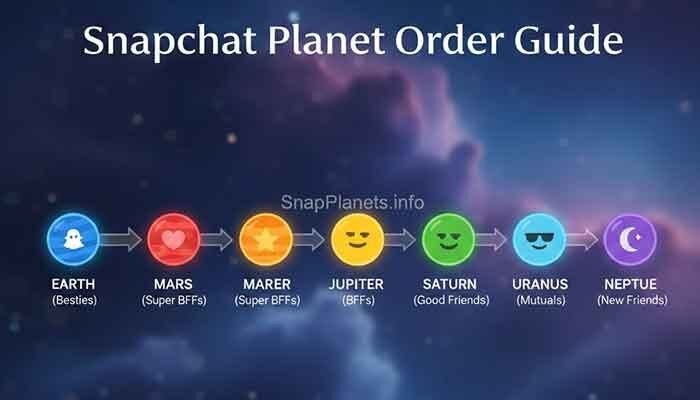
When the feature is enabled, tapping the Best Friends badge on a Friendship Profile can show which planet represents your position in that friend’s Solar System. The planets correspond to positions from first through eighth.
| Planet | Best Friends Position |
|---|---|
| Mercury | #1 |
| Venus | #2 |
| Earth | #3 |
| Mars | #4 |
| Jupiter | #5 |
| Saturn | #6 |
| Uranus | #7 |
| Neptune | #8 |
How to Turn Off Snapchat Planets
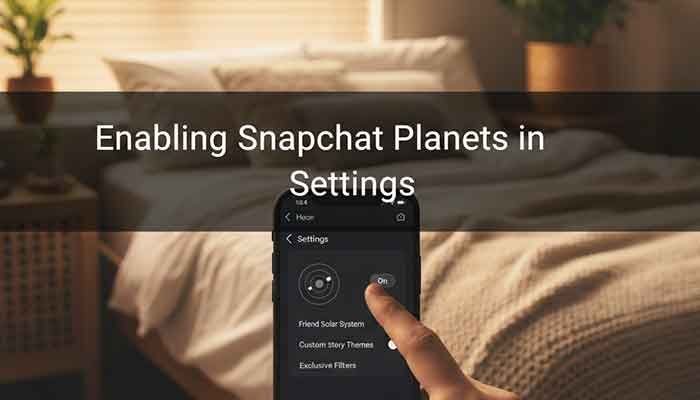
Snapchat’s current support instructions say Friend Solar System can be toggled on or off from the Snapchat+ feature management page. Use these steps:
Step 1: Open Your Snapchat Profile
Open Snapchat and tap your profile or Bitmoji icon. This takes you to your Profile screen, where Snapchat+ settings are available for subscribers.
Step 2: Open Snapchat+
Tap the Snapchat+ membership area on your Profile to open the Snapchat+ feature management page. The exact wording or placement can change as Snapchat updates the app.
Step 3: Find Friend Solar System
Look through your Snapchat+ feature options and find Friend Solar System. This is the setting that controls the planet view.
Step 4: Switch It Off
Tap the Friend Solar System option to turn it off. Snapchat confirms that the feature can be toggled on or off whenever you want.
If you do not see the option, make sure you are signed into the Snapchat+ account that owns the subscription and that your Snapchat app is updated. Feature availability and interface details can change with app updates.
What Happens After You Turn Off Snapchat Planets?
Turning off Friend Solar System stops the Solar System feature from being active for your account. It is a feature setting, not a reset of your friendships or Best Friends list.
- Your Snapchat+ subscription stays active. Turning off Solar System does not cancel the subscription.
- Your Best Friends are not deleted. The Solar System is a visual feature connected to Best Friends.
- Your regular chats and Snaps are unaffected. The setting does not remove friends or erase conversations.
- You can turn Solar System back on. Snapchat says the feature can be toggled on and off at any time.
Why Is Snapchat Planets Already Off?
If you have Snapchat+ but cannot see the planet feature, you may not need to troubleshoot anything. Snapchat says Friend Solar System is off by default for first-time Snapchat+ subscribers. You can enable it from the Snapchat+ feature management page when you want to use it.
This also means an older guide that tells every new Snapchat+ subscriber to disable the feature immediately may be outdated. The current Snapchat setting already starts with Solar System disabled for first-time subscribers.
Can You Hide Your Planet From a Specific Friend?
Snapchat’s documented control is for the Friend Solar System feature itself. It does not provide a published setting for hiding only one planet relationship while leaving the rest of Solar System active.
If your goal is simply not to use the planet view, turning off Friend Solar System is the relevant setting. If you are concerned about ordinary friendship information, remember that Solar System and Snapchat’s other friendship features are separate.
Snapchat Planets vs. Best Friends
These two features are related but not identical. Best Friends are the friends Snapchat identifies based on who you Snap and Chat with the most. Friend Solar System adds the planet visualization to that relationship for Snapchat+ users who have the feature enabled.
| Feature | What it means |
|---|---|
| Best Friends | Your top friends based on Snapchat’s Best Friends system |
| Friend Solar System | A Snapchat+ visualization of your position among a friend’s Best Friends |
| Snapchat+ subscription | The paid membership that includes Friend Solar System and other premium features |
So, turning off Planets should not be described as turning off Best Friends. It only removes your access to the Solar System view while the underlying Snapchat friendship features continue to operate.
Troubleshooting: Friend Solar System Is Missing
Check Your Snapchat+ Account
Make sure you are using the Snapchat account that has the Snapchat+ subscription. The Friend Solar System feature is tied to Snapchat+.
Check the Feature Setting
Open the Snapchat+ feature management page and look for Friend Solar System. If it is switched off, turn it on if you want to use the planet view.
Update Snapchat
If the Snapchat+ menu looks different or a documented option is missing, check your device’s app store for a Snapchat update. Then reopen the app and check the Snapchat+ settings again.
Remember That Features Can Change
Snapchat+ includes premium, experimental, and pre-release features. The available options and their interface can change, so an older screenshot may not match the current app.
Frequently Asked Questions
Does turning off Snapchat Planets cancel Snapchat+?
No. Friend Solar System is a feature toggle. Turning it off is not the same as canceling your Snapchat+ subscription.
Will turning off Planets remove my Best Friends?
No. The Solar System is a visualization of Best Friends, not the Best Friends system itself. Turning off Solar System does not mean you are deleting or manually changing your Best Friends.
Can I turn Snapchat Planets back on later?
Yes. Snapchat says Friend Solar System can be toggled on or off at any time from the Snapchat+ feature management page.
Why does my friend have Planets but I do not?
Friend Solar System is a Snapchat+ feature and is off by default for first-time subscribers. Check your own Snapchat+ feature settings to see whether it is enabled.
Does turning off Planets reset my planet rank?
Snapchat does not document a separate planet-reset action created by switching Solar System off. The setting controls whether you use the feature; it should not be treated as a manual reset button.
Related Snapchat Planets Guides
- How to Reset Snapchat Planets
- Who Can See Your Snapchat Planets?
- Snapchat Top 8 Friends Explained
- Snapchat Plus FAQ
Final Answer
To turn off Snapchat Planets, open your Profile, enter the Snapchat+ feature management page, find Friend Solar System, and switch it off. Snapchat confirms that the feature can be toggled on or off at any time.
Turning it off does not cancel Snapchat+, delete your Best Friends, or act as a planet-ranking reset. If you later want the planets back, return to the same Snapchat+ setting and enable Friend Solar System again.