If Snapchat Planets look blurry, pixelated, or fail to load, start with a stable internet connection and the latest version of Snapchat. Then close and reopen the app, clear its cache, and check whether Friend Solar System is enabled. These steps can resolve common display problems, although the cause may vary by device or app version.
Snapchat does not publish a specific technical explanation for every blurry planet image. Avoid assuming that cache, storage, or a subscription issue is always responsible. Work through the checks below one at a time.
My Personal Experience with Blurry Snapchat Planets
A blurry planet can make the Friend Solar System feature difficult to read, especially when the badge appears unclear while the rest of the profile looks normal. The useful first step is to determine whether the problem affects one planet, several profile elements, or the entire app.
There is no need to assume your friendship ranking has changed because an icon looks pixelated. Image quality and a planet’s position are different things. For context on the planet order, see our guide to Snapchat Best Friends vs. Planets.
Why are the Snapchat Planets Blurry?
Blurry graphics can result from a temporary app issue, a weak or unstable connection, an outdated app, or a display problem. The exact cause is not always visible, and Snapchat does not confirm that one cause explains every planet issue.
Common Culprits for Graphics Issues:
- Connection problems: A weak connection can prevent profile elements from loading properly.
- Temporary app issue: Closing and reopening Snapchat may resolve a short-lived display glitch.
- Outdated version: An update may include fixes or compatibility improvements.
- Cached temporary data: Clearing Snapchat’s cache is a reasonable troubleshooting step if the display remains abnormal.
- Device or display issue: If other apps also look blurry, check your phone’s display settings and system updates.
Step-by-Step Fix for Snapchat Plus Graphics
Try these steps in order. After each one, reopen the friend profile and check whether the planet image has improved. Menu names can vary by device and app version.
1. The “Magic” Cache Clear
Clearing Snapchat’s cache removes temporary data and is a useful troubleshooting step. Snapchat says this does not delete your Memories, Snaps, or Chats.
- Open Snapchat and tap your Bitmoji or profile icon.
- Open Settings using the gear icon.
- Find the cache-clearing option in the settings menu. Its location may vary by version.
- Choose Clear Cache and confirm if prompted.
- Close and reopen Snapchat, then check the planet again.
2. Force the Asset Re-download
There is no guaranteed manual command to redownload a specific planet illustration. Instead, refresh the app in a safe order:
- Switch between Wi-Fi and mobile data to test the connection.
- Fully close Snapchat, then reopen it.
- Check the App Store or Google Play for an available update.
- If Friend Solar System is missing rather than blurry, review the feature setting in Snapchat+ settings. Avoid repeatedly toggling settings if the option is not present.
3. Check Your Storage
Check that your phone has enough free space for normal app operation and that the operating system is up to date. Low storage is not a confirmed cause of every blurry planet, so treat this as a general device check rather than a guaranteed fix. You do not need to delete personal photos first; review your phone’s storage recommendations if space is nearly full.
Snapchat Planets: Meaning and Visual Guide
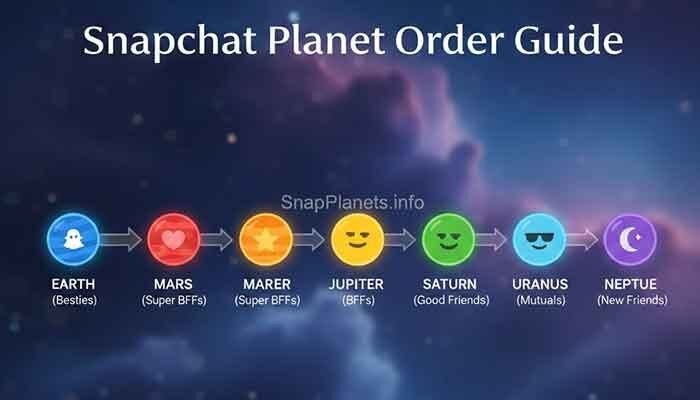
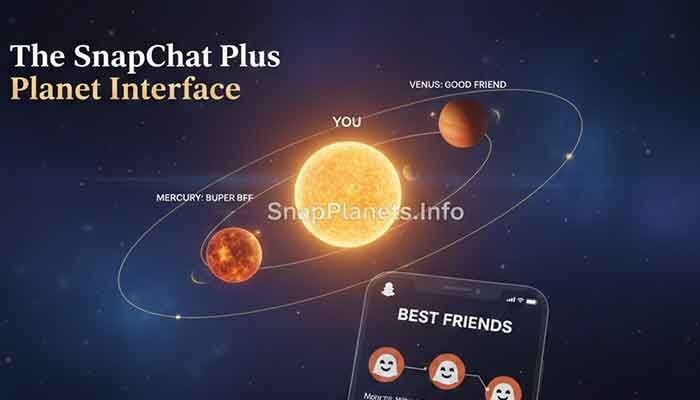
Friend Solar System is a Snapchat+ feature that represents positions in the Best Friends ranking with planets. In order, the planets are Mercury, Venus, Earth, Mars, Jupiter, Saturn, Uranus, and Neptune. A blurry icon does not by itself prove that the ranking has changed.
For planet-specific explanations, read our guides to Uranus on Snapchat and Neptune on Snapchat. Snapchat does not publish a fixed score formula or a guaranteed schedule for rank changes.
Troubleshooting “Planet Icons Not Loading”
If the planet is missing entirely, check feature availability and settings as well as image quality. A missing badge and a blurry badge may have different causes, so follow the relevant checks rather than assuming they are the same problem.
The “Best Friend” Requirement
Friend Solar System reflects the ranking shown by Snapchat, and not every friend will necessarily have a visible planet badge for you. The feature does not provide a public numerical score, and a Snapstreak alone does not guarantee a particular position. Learn more in our guide to Best Friends and planet rankings.
The “Friend Solar System” Toggle
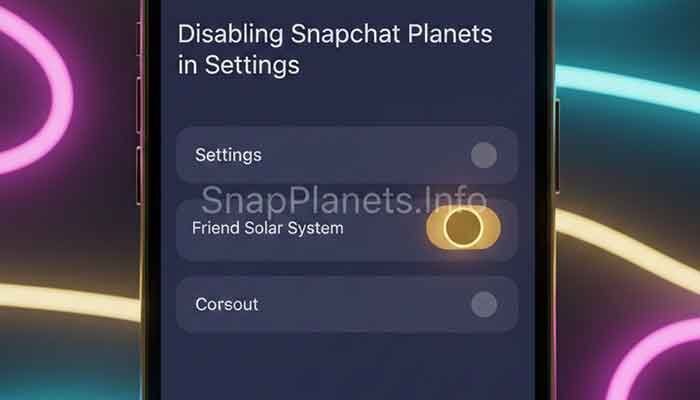
Check Snapchat+ settings to see whether Friend Solar System is available and enabled. Snapchat says the feature is off by default for first-time Snapchat+ subscribers, who can turn it on in Snapchat+ settings. If the toggle is missing, update the app and consult Snapchat’s in-app support; menus may differ between versions.
If planets still do not appear, use our Snapchat Planets not showing troubleshooting guide for additional checks.
FAQ: What the Community is Asking
Q: Does clearing my cache delete my Snapstreaks?
No. Snapchat states that clearing its cache does not delete Memories, Snaps, or Chats. It is different from deleting your account or removing saved content. If you are unsure about a particular action, read the confirmation screen before proceeding.
Q: Why is only ONE friend’s planet blurry?
A single blurry badge may be a temporary display issue affecting that profile, but the exact cause cannot be determined from appearance alone. Reopen the profile, test your connection, update Snapchat, and clear the cache if needed. Do not assume it means your rank changed.
Q: Can my friends see what planet I am in their Solar System?
Friend Solar System shows positions within the feature to eligible Snapchat+ users. It is not a public profile ranking broadcast to everyone. Visibility depends on the feature and the relevant friendship ranking; do not treat the badge as a public list of all your interactions.
Q: I fixed the blurriness, but now the app is laggy. What gives?
Check whether the lag continues after reopening the app and allowing the screen to load. Update Snapchat, restart your phone, and check available storage. If other apps are also slow, the issue may be device-wide rather than specific to Friend Solar System.
Martin’s Final Tip
Start with the simplest fixes: check your connection, reopen Snapchat, update the app, and clear the cache. If the planet remains blurry, note whether other profile graphics are affected and contact Snapchat Support rather than repeatedly changing settings or reinstalling without a reason.
For more help, see the Snapchat+ FAQ. A planet badge is only an app feature; it is not a measure of a friendship’s real-life value.