Snapchat+ adds premium features such as Friend Solar System, Story Rewatch, custom themes, and other tools, but having a subscription does not mean you need to use every feature. If privacy matters to you, the best approach is to review Snapchat’s privacy controls and only enable the features you actually want.
In this guide, we will cover the most important Snapchat privacy settings for your location, Stories, contacts, Find Friends, Activity Indicator, My AI data, Friend Solar System, Snapchat+ Badge, and Story Rewatch. The goal is simple: keep the Snapchat+ features you enjoy while giving yourself more control over what other people can see.
Does Snapchat+ Change Your Privacy Settings?
Snapchat+ gives you access to additional features, but many of the important privacy controls are part of Snapchat’s normal Settings menu. Snapchat’s current privacy controls let you decide who can contact you, who can see your location, who can view your Story, whether you appear in Find Friends, whether your Activity Indicator is visible, and more.
That means you do not need to give up basic privacy just because you subscribe to Snapchat+. Instead, review the settings below and choose the options that fit how you use the app.
How to Open Snapchat Privacy Settings
- Open Snapchat and tap your Profile.
- Tap the Settings gear icon.
- Scroll to the App & Privacy section.
- Open the privacy option you want to change, such as My Privacy & Data or Contact Me.
Snapchat’s current menu names can vary slightly by device, account, or app version, so do not worry if a setting appears in a slightly different location.
1. Use Ghost Mode to Protect Your Snap Map Location

Location sharing is one of the most important privacy settings to review. Snapchat’s Ghost Mode makes your location invisible to other people on Snap Map, although Snapchat can still receive your location.
To enable Ghost Mode from Snap Map:
- Open Snap Map.
- Tap the gear icon in the bottom-right corner.
- Turn on Ghost Mode.
- Choose a duration such as 3 hours, 24 hours, or Until Turned Off, when those options are available.
Keep in mind that Snaps you submit to Snap Map can still appear on the Map regardless of your location-sharing setting. If you do not want to share location information with other Snapchatters, review your Snap Map settings before using location-based features.
2. Choose Who Can View Your Story
Your Story is another setting worth checking regularly. Snapchat currently lets you choose between My Friends and Custom for the standard My Story privacy options.
- Open your Profile and tap the Settings gear.
- Go to My Privacy & Data.
- Under the relevant Story controls, tap View My Story.
- Choose My Friends or Custom.
If you use a Public Profile, remember that public Stories are different from your friends-only My Story. Also, changing your privacy setting does not necessarily change the audience for Snaps that were already posted under an earlier setting.
3. Limit Who Can Contact You
Under Contact Me, you can control who can contact you directly with Snaps, Chats, calls, and other communication. For a more private setup, keeping direct contact limited to people you have added as friends is usually the safer choice.
One important detail is that people in a Group Chat can still communicate with you in that group even when your direct-contact setting is limited to Friends. Review your group memberships if you want tighter control over who can reach you.
4. Review Find Friends and Activity Indicator
Snapchat also gives you controls over whether other people can find you through Find Friends and whether they can see your Activity Indicator.
- Find Friends: Review who can discover you through Snapchat’s friend-finding feature.
- Activity Indicator: Turn it off if you do not want other Snapchatters to see that you have recently been active.
- Mutual Friends: Review the option for showing your mutual-friend information where available.
These settings are separate from your Snapchat+ subscription, but they are important if your goal is to make your overall Snapchat account more private.
5. Check Who Can Use Your Bitmoji and Selfie
Snapchat includes privacy controls for your Bitmoji avatar and for generating images with your My Selfie. If you prefer to keep these features limited, review the available audience settings in the privacy section.
This is especially useful if you have enabled Snapchat’s AI-powered creative features and want more control over how your personal images or avatar can be used within the app.
6. Keep Friend Solar System Under Your Control
Friend Solar System is a Snapchat+ feature that represents a friend’s position in your Best Friends list using planets. Snapchat says the Solar System is off by default for first-time Snapchat+ subscribers, and you can turn it on or off from Snapchat+ feature management.
If you do not want to use the feature, simply leave it disabled. Turning off Solar System does not mean you have to cancel Snapchat+; it only means you are choosing not to use that particular feature.
7. Hide the Snapchat+ Badge if You Prefer
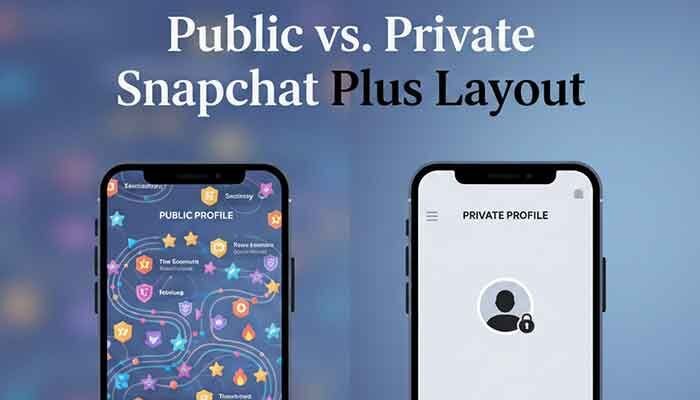
The Snapchat+ Badge is a black star that can appear next to your display name and indicate that you subscribe to Snapchat+. Snapchat says the badge is off by default, and you can choose whether to enable it from your Snapchat+ membership card.
If you prefer not to advertise your subscription, simply leave the badge turned off. You can enable it later if you change your mind.
8. Manage Story Rewatch and Story View Notifications
Snapchat+ includes several Story-related features, and it is important to understand what they actually reveal. The Story Rewatch Indicator shows how many friends rewatched your Story. It does not show which specific friends rewatched it.
You can turn the Story Rewatch Count on or off from your Snapchat+ membership card. Snapchat+ also offers Story View Notifications, which can notify you the first time a selected friend views your Story. These are optional Snapchat+ features, so review them and disable anything you do not want to use.
9. Clear Your My AI Data
Privacy is not only about what your friends can see. It is also worth reviewing what information you share with My AI. Snapchat says content shared with My AI is retained until you delete it, and stored interactions can be used to improve and personalize the experience.
On iPhone, Snapchat’s current instructions are:
- Tap your Profile and open Settings.
- Scroll to Privacy Controls.
- Tap Clear Data.
- Select Clear My AI Data and confirm.
On Android, Snapchat currently provides the My AI data option under Account Actions. Snapchat notes that deleting relevant My AI data from its servers can take up to 30 days.
10. A Simple Privacy-First Snapchat+ Setup
- Snap Map: Use Ghost Mode when you do not want your location visible to other Snapchatters.
- Story: Keep My Story limited to Friends or use Custom when appropriate.
- Contact Me: Limit direct contact to people you trust.
- Find Friends: Review whether you want to be discoverable there.
- Activity Indicator: Turn it off if you prefer not to show recent activity.
- Friend Solar System: Keep it off if you do not want to use the feature.
- Snapchat+ Badge: Leave it off if you do not want your subscription displayed.
- My AI: Avoid sharing sensitive information and clear stored My AI data when appropriate.
Frequently Asked Questions
Does Snapchat+ make my account less private?
Not automatically. Snapchat+ adds optional features, while many important privacy controls remain available in Snapchat’s normal Settings. Your privacy depends largely on which features and audience settings you choose to use.
Can I use Snapchat+ without Friend Solar System?
Yes. Snapchat says Solar System can be turned on or off from Snapchat+ feature management. It is also off by default for first-time subscribers.
Does Ghost Mode stop Snapchat from receiving my location?
No. Ghost Mode makes your location invisible to other people on the Map, but Snapchat says your location can still be shared with Snap.
Can Snapchat+ friends see exactly who rewatched my Story?
No. The Story Rewatch Indicator shows how many friends rewatched your Story, not which specific friends did it.
Does clearing My AI data delete everything immediately?
Snapchat says relevant My AI data can take up to 30 days to be deleted from its servers. Clearing My AI data also does not delete messages from group chats that include My AI.
Final Takeaway
The best Snapchat Plus privacy setup is not about switching everything off. It is about understanding what each feature does and choosing the level of sharing that feels right for you.
Start with the settings that matter most: location sharing, Story visibility, contact permissions, Find Friends, Activity Indicator, My AI data, and optional Snapchat+ features such as Solar System, the Snapchat+ Badge, and Story tools. Snapchat can update its menus and features over time, so it is a good idea to review these settings after major app updates.