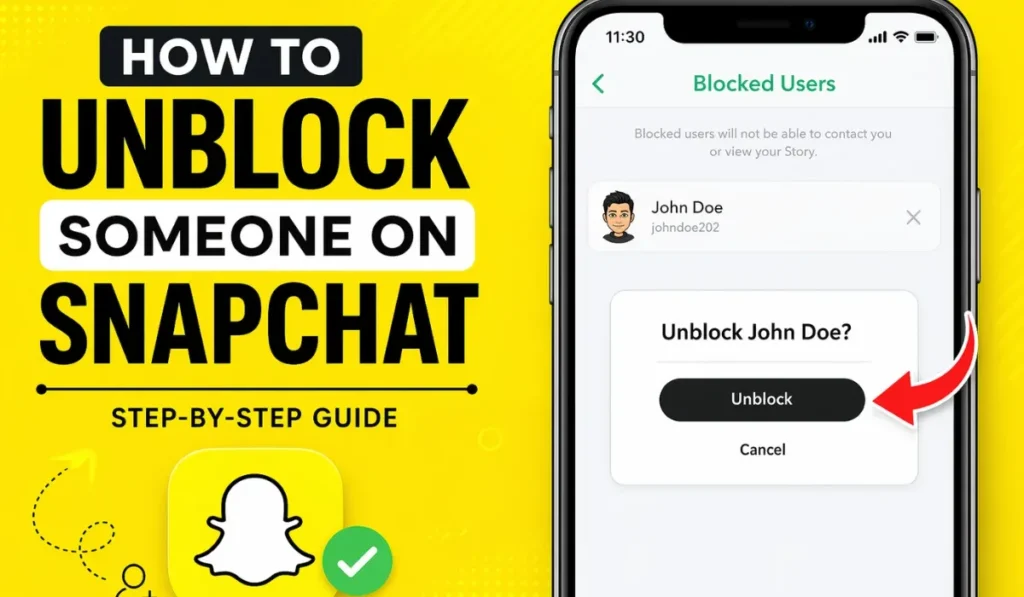
If you previously blocked someone on Snapchat and now want to reconnect, you can remove the block from your account settings. Snapchat’s current support instructions place the blocked-user list inside Settings, where you can tap the X beside the person’s name to unblock them.
Unblocking restores the person’s ability to send you Snaps and Chats and view your Stories and Charms, but it does not automatically rebuild the friendship. If you want to communicate normally again, you may need to add the person back.
Why You Might Want to Unblock Someone on Snapchat
People may block an account temporarily and later decide that the block is no longer necessary. Common situations include:
- You blocked the wrong account by mistake.
- A disagreement has been resolved.
- You want to reconnect with an old friend.
- You need to communicate with the person again.
- You want to restore access to normal Snapchat communication.
Whatever the reason, Snapchat provides a direct way to manage blocked users from Settings. There is no need to use a third-party app or workaround.
What Happens When You Block Someone on Snapchat?
Blocking is stronger than simply removing someone from your friends list. According to Snapchat Support, a blocked person cannot send you Snaps or Chats, and they cannot see your normal Stories or Charms. Your Snap Map location is also hidden from them.
- Direct Snaps and Chats are blocked.
- Your normal Stories and Charms are hidden from the blocked account.
- Your Snap Map location is hidden from that person.
- The account no longer appears in your Search results, Best Friends list, or Quick Add/Find Friends suggestions.
- One-to-one active conversations may no longer be visible from your side.
There is an important exception: someone you block may still be able to view content you post publicly, such as Public Stories or Spotlight content. Blocking does not make public content universally invisible.
Important Things to Know Before Unblocking
- Unblocking does not automatically recreate the previous friendship connection.
- The person can send you Snaps and Chats again after you unblock them, subject to your current privacy settings.
- Previous Chat history may not fully return.
- Saved messages can be removed when you are no longer friends, including after blocking.
- Snapchat does not send a notification specifically saying that you have unblocked someone.
Snapchat’s support documentation specifically warns that previous Chat history may not all be visible after an unblock, so do not assume that old conversations will be restored exactly as they were.
Step-by-Step Guide to Unblock Someone on Snapchat
The current Snapchat Support path is straightforward. The labels can vary slightly by app version, but the blocked-user list is accessed from Settings.
Step 1: Open Snapchat App
Open Snapchat on your phone and sign in to the account from which you originally blocked the person.
Step 2: Tap on Your Profile Icon
- Open the Snapchat camera screen.
- Tap your profile or Bitmoji icon at the top of the screen.
This takes you to your Profile screen, where Snapchat provides access to account settings.
Step 3: Open Settings
- Tap the ⚙️ icon.
- Open the Settings area for your Snapchat account.
Snapchat’s current support pages place privacy and blocked-user controls within the account settings area.
Step 4: Scroll Down to “Blocked Users”
Scroll through Settings until you reach the blocked-user control. Snapchat’s current help documentation describes the path as Settings, then the privacy/data area, followed by Blocked Users. On some app versions, the option may simply appear as Blocked.
- Open the blocked-user list.
- Review the usernames currently blocked from your account.
Step 5: Unblock the User
- Find the person you want to unblock.
- Tap the ✖️ or X beside their username.
- Complete the confirmation step if Snapchat displays one.
That removes the block. Snapchat confirms that unblocked users can then send Snaps and Chats and view your Stories and Charms again.
What to Do After Unblocking Someone
Removing the block is only the first step if you want to become friends again. Check the person’s profile and use Snapchat’s normal add-friend process if you want to reconnect.
1. Add Them Back as a Friend
Search for the person’s username or use another available method, such as their Snapcode, and send a friend request if the account can be found.
2. Wait for Acceptance
If the person needs to accept your request, your Snapchat connection may not immediately return to its previous state. Privacy settings can also affect who can contact whom.
3. Start a Conversation
Once the connection is restored and the account’s privacy settings allow it, you can resume normal Snaps and Chats.
Can You Find Someone After Unblocking?
Usually, you can try searching for the person after removing the block. Snapchat recommends entering the username correctly or using a Snapcode when adding someone.
- Check that the username is spelled correctly.
- Make sure you are searching from the account where the block was removed.
- Try a Snapcode if you have one.
- Remember that the other person may have changed their username, deleted the account, or blocked you.
If you cannot find the account, that does not automatically prove that the unblock failed. Account changes, search availability, or a separate block can affect what you see.
What Happens to Chats After Unblocking?
Unblocking should not be treated as a guaranteed restoration of your old Chat screen. Snapchat says that after an unblock, you may not see all previous Chat history, and saved messages can be removed when the two accounts are no longer friends.
- Some previous Chat history may no longer be visible.
- Saved messages are not guaranteed to remain available after the friendship is broken.
- You may need to rebuild the connection before normal messaging resumes.
So if an old conversation does not return after unblocking, that does not necessarily mean your account is malfunctioning.
Why You Might Not Be Able to Unblock Someone
If the unblock control is not working as expected, check the following possibilities before assuming that the account has been permanently lost.
1. The User Deleted Their Account
If an account is no longer available, you may not be able to interact with it normally after removing the block.
2. App Glitches
Temporary app problems can affect account lists or settings. Close and reopen Snapchat, then check whether the blocked list loads correctly.
3. Poor Internet Connection
A weak or unstable connection can prevent Snapchat from loading current account information. Switch between reliable Wi-Fi and mobile data and try again.
4. Snapchat Server Issues
If Snapchat is experiencing a temporary service problem, settings may not behave normally. Update the app and retry later if the problem continues. For a persistent bug, Snapchat recommends reporting it through Support & Safety > Bugs and Suggestions > Report a Bug.
Tips for Managing Your Snapchat Contacts
Blocking is useful when you need to stop direct interaction, but it is not the only contact-management option. Consider what level of separation you actually need before changing a connection.
- Use privacy controls to decide who can contact you.
- Remove a friend when a full block is unnecessary.
- Mute notifications when you only want fewer interruptions.
- Leave a shared Group Chat if you no longer want to see its messages.
Alternative Options Instead of Blocking
If your goal is simply to reduce contact rather than completely block an account, Snapchat offers less restrictive options.
1. Mute Notifications
Muting can reduce interruptions without cutting off the account entirely. It is useful when you want distance without using the stronger block option.
2. Remove Friend
Removing someone takes them off your friends list but is different from blocking. Depending on your privacy settings, a removed person may still be able to view public content.
3. Change Privacy Settings
If you mainly want to control who can contact you, review Snapchat’s privacy controls instead of blocking every account individually. Snapchat allows users to manage contact permissions through Settings.
How to Block Someone Again (If Needed)
If you unblock an account and later decide that you need to block it again, Snapchat provides the same blocking controls through the person’s profile or Chat screen.
- Open the person’s profile or Chat.
- Tap the three-dot menu or friendship-management option.
- Select Block.
- Confirm the block if Snapchat asks you to do so.
Snapchat’s current support instructions confirm that blocking can be started from the Chat screen by managing the friendship and selecting Block.
Frequently Asked Questions (FAQs)
Will the person know I unblocked them?
Snapchat does not state that it sends a dedicated notification when you unblock someone. However, the person may notice that they can interact with your account again.
Can I unblock someone immediately?
Yes. Snapchat allows you to return to the blocked-user list and remove the block. The current support instructions do not describe a mandatory waiting period.
Do I need to add them again?
Unblocking restores their ability to contact you and view eligible content, but it does not automatically mean that you are friends again. If you want a normal friend connection, use Snapchat’s add-friend process.
Can I unblock someone who blocked me?
You can only remove a block that exists on your own account. If the other person has also blocked you, removing your own block does not override their privacy choice or give you access to their account.
Final Thoughts
Unblocking someone on Snapchat is a simple account-setting change. Open your Profile, enter Settings, find the blocked-user list, and tap the X beside the account you want to unblock. Snapchat confirms that the person can then send Snaps and Chats and view your Stories and Charms again.
The important part is understanding what unblocking does not guarantee. It does not promise that old Chats will fully return or that the previous friendship state will automatically be restored. If you want to reconnect, search for the account and add the person again where appropriate.
For related Snapchat privacy and friendship information, see our guides on Snapchat planet rank after blocking, the Snapchat green dot, Best Friends vs. Planets, and Snapchat Top 8 Friends.